
 Add to Preferred Sources
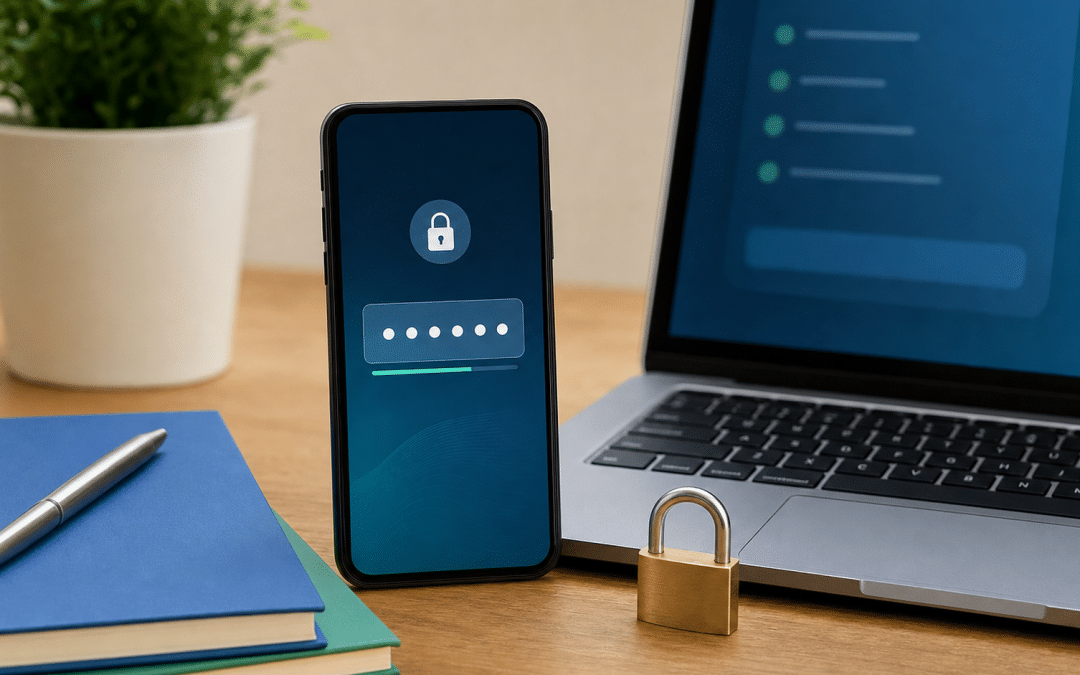
WordPress two factor authentication adds a second verification step — a time-limited code from your phone — so that a stolen password alone is not enough for an attacker to reach your admin dashboard. If you are running a self-hosted WordPress site for your South African business, enabling it takes under ten minutes and can prevent the kind of credential compromise that triggers a full website rebuild.
This guide covers the right method for SA conditions, the plugins worth installing in 2026, and how to enforce 2FA across a multi-user team.
South Africa sits in an uncomfortable position: NEC XON found more than 10,000 compromised local credentials on the dark web during client assessments in 2025, and a report by Kaspersky cited a 26% rise in password-stealing malware across Africa in 2024.
Research attributed to IBM's 2024 Cost of a Data Breach Report and cited by NEC XON puts the average cost of a South African breach at R56 million — and POPIA section 22 requires you to notify the Information Regulator as soon as reasonably possible if your WordPress database is accessed without authorisation.
Quick Answer
WordPress two factor authentication requires a second login code — generated by an authenticator app, delivered via email, or sent by SMS — after the correct password is entered. For South African sites, app-based codes (TOTP) are the most reliable choice because they are generated locally without internet or power.
Install the free WP 2FA plugin, run the setup wizard, scan the QR code with Google Authenticator or Microsoft Authenticator, save your backup codes, and the protection is live. For multi-user sites, you can enforce 2FA for administrator and editor roles with a grace period so team members can set it up before being locked out.
Jump to a Section
What Is WordPress Two-Factor Authentication?
How to Enable WordPress Two Factor Authentication
Picking the Right Method for SA Conditions
Not Sure If Your WordPress Setup Is Secure?
Send us your site URL and we will check the basics — login protection, SSL, outdated plugins — and tell you exactly where the gaps are.
Get a Free Security CheckWhat Is WordPress Two-Factor Authentication?
Two-factor authentication (also written two-factor authentication, or 2FA) is a login method that combines something you know — your password — with something you have — a code that expires within 30 to 60 seconds. The most widely used standard is TOTP (Time-based One-Time Password): your authenticator app and the WordPress plugin both hold the same secret key, and use the current time to generate matching six-digit codes independently. No code is ever transmitted; the app just calculates it.
It is important to distinguish between two different WordPress platforms because the setup is completely different.
If your site is hosted on WordPress.com (the hosted service), enable two-step authentication from your account's Security → Two-Step Authentication settings. You can choose between an authenticator app or SMS. No plugin needed.
If your site runs on WordPress.org software on your own host (self-hosted), you need a 2FA plugin — and that is the scenario this guide covers in detail.
For self-hosted sites, 2FA works at the plugin level: the plugin intercepts the standard login flow after password entry and demands the current code before granting access. If the code is wrong or has expired, the login fails — even with the correct password.
Why SA Businesses Cannot Ignore This Any Longer
Industry research cited by both Wordfence and Sucuri found that 81% of compromised WordPress sites involved weak or stolen passwords — this figure comes from aggregated tracker data, and the primary study was not independently retrieved for this post. Security trackers aggregating Wordfence data report approximately 6.4 billion brute-force login attempts blocked monthly across the Wordfence network. Those numbers are global — but South Africa is not insulated from the trend.
According to NEC XON, compromised credentials are the initial attack vector in 17% of South African breaches. IBM's 2024 Cost of a Data Breach Report puts the average cost of any South African breach at R56 million — a figure that covers all breach types, not credentials alone. A Kaspersky report also cited by NEC XON recorded a 26% rise in password-stealing malware across Africa in 2024. And the Information Regulator received 2,374 breach notifications in the 2024/25 financial year.
The POPIA Obligation You May Be Underestimating
Under POPIA section 22, if there are reasonable grounds to believe an unauthorised person accessed personal information you hold, you must notify the Information Regulator and affected data subjects as soon as reasonably possible. A WordPress admin compromise — where an attacker accesses form submissions, customer records or WooCommerce order data — is exactly this scenario. Two-factor authentication does not make a breach impossible, but it removes the single most common entry point: the stolen password.
The cost of a breach in reputational damage, regulatory scrutiny and customer loss almost always dwarfs the ten minutes it takes to enable 2FA. This is the simplest risk-reduction step available to any WordPress site owner.
How to Enable WordPress Two Factor Authentication
Enabling 2FA on a self-hosted WordPress site with the WP 2FA plugin is the most widely adopted route in 2026: it has over 100,000 active installations, a 4.7-star rating on WordPress.org, and a setup wizard that requires no technical background. The free version covers all essential functionality for single and multi-user sites. The right two factor authentication WordPress plugin for your setup depends mainly on your user count and whether you need SMS as a fallback.
Step 1 — Install WP 2FA
To enable two factor authentication, WordPress administrators go to Plugins → Add New in the dashboard, search for "WP 2FA", install the plugin by Melapress, and activate it.
Step 2 — Run the Setup Wizard
The wizard launches automatically on first activation, or you can find it under Users → Your Profile → WP 2FA. It walks you through method selection and QR code setup without requiring any configuration file editing.
Step 3 — Choose Your Authentication Method
Select "One-time code via 2FA app" as your primary method. This is the most reliable option for SA conditions — we explain why in the next section. If you want a fallback for users who lose their phone, email codes can be set as a secondary method.
Step 4 — Scan the QR Code
Open Google Authenticator, Microsoft Authenticator, or Authy on your phone and tap the option to add a new account. Scan the QR code shown in the wizard. Your authenticator app will immediately start generating six-digit codes. Enter the current code to confirm the link is working.
Step 5 — Save Your Backup Codes
The wizard generates a set of single-use backup codes. Print them or store them in a password manager. These are the only way to access your account if you lose your phone — do not skip this step.
Step 6 — Set Your Enforcement Policy
Decide which user roles must use a two factor authentication login. For a single-person site, you only need to configure your own account. For team sites, set a grace period — seven to fourteen days is practical — so team members can complete their setup before they are locked out.
Keep Backup Codes Somewhere Your Phone Is Not
Backup codes exist for the moment your phone is unavailable — lost, stolen, or dead during a two-stage power cut. Store them in a password manager, a locked drawer, or a secure cloud document. Keeping them on the same phone as the authenticator app defeats the purpose.
Picking a Method That Works During Load-Shedding
South African site owners face a constraint that most 2FA guides overlook: load-shedding takes out Wi-Fi, ISP routers and sometimes mobile data — exactly when you might need to log in remotely to manage your site. The 2FA method you choose determines whether you can still access your admin dashboard when the power is out.
| Method | How It Works | During Load-Shedding | Best For |
|---|---|---|---|
| App (TOTP) Google Authenticator, Microsoft Authenticator, Authy | Six-digit code generated locally on your phone every 30 seconds | ✓ Works — codes are calculated on-device with no internet | Most SA operators — the clear default |
| Email Code | One-time code sent to your registered email | ⚠ Depends — requires email server and your ISP to be up | Sites where team members won't install an app |
| SMS Code (WP 2FA Premium) | Code sent via text message to your mobile number | ⚠ Partial — cellular signal works if cell towers have backup power; needs SMS API subscription | High-security sites with budget for SMS API costs |
| Hardware Key (YubiKey — Premium) | Physical USB/NFC key must be present at login | ✓ Works — no power or internet needed for the key | Agencies or enterprises with budget for hardware |
TOTP codes are generated entirely on your phone using a shared secret and the current time — no Wi-Fi, no data, no SMS. The only requirement is that your phone clock stays accurate, which it does automatically when it reconnects to the network. This makes app-based 2FA the practical winner for any South African business owner who manages their own site.
2FA Plugin Comparison for WordPress Sites in 2026
Three plugins cover most South African use cases in 2026. Choose based on your site type, number of users, and whether you need role-level enforcement.
| Plugin | Free Tier | Methods (Free) | Paid From | Best For |
|---|---|---|---|---|
| WP 2FA (Melapress) | Unlimited users | TOTP app, email codes, backup codes, passkeys | $79 / year (1 site) | Most sites — easiest setup, best multi-user policy options |
| Two Factor Authentication (Team Updraft) | Unlimited users | TOTP app (Google Authenticator, Authy, others) | Premium available | Lightweight single-operator sites; WooCommerce logins |
| miniOrange 2FA | 1 user only | TOTP, push, QR code | Paid plans available | Single-admin sites; not practical for team sites on free tier |
A note on Wordfence Login Security: this standalone 2FA plugin was a popular free option, but it was closed by the author in August 2026 and is no longer available for download. If you had it installed, migrate to WP 2FA or the Two Factor Authentication plugin rather than relying on an unsupported plugin.
WP 2FA Premium adds SMS codes, YubiKey support, trusted device management and WooCommerce-specific enforcement — the $79/year tier covers one site, or $149/year for up to 25 sites. The 30-day money-back guarantee makes it low-risk to test on a staging environment before committing. For most small SA businesses, the free tier is sufficient unless you need SMS-based codes or hardware key support.
Unsure Which Plugin Fits Your Setup?
Share your current WordPress configuration and we will recommend the right 2FA approach — plugin, method, and enforcement policy — for your site and team size.
Ask a WordPress QuestionMaking Login Protection Mandatory for Your Whole Team
Enforcing 2FA site-wide closes the risk that a single team member with a weak password becomes the entry point for an attack. WP 2FA's enforcement policies let you require 2FA for all users, specific roles, or particular accounts — and set a grace period so nobody is locked out before they have had a chance to set it up.
This kind of WordPress site authentication policy is what separates a site that is genuinely protected from one that is merely locked on the front door.
A practical enforcement workflow for a small SA business:
- Set enforcement for Administrator and Editor roles only (these are the accounts with write access — Subscribers and Customers pose much lower risk).
- Set a grace period of seven to fourteen days. During this window, team members can still log in normally but are prompted to configure 2FA each time.
- After the grace period, users without 2FA configured are redirected to the 2FA setup page on every login attempt.
- Test by logging in as an affected role account before the grace period expires — confirm the setup flow is working and backup codes have been saved.
Administrators Are the Primary Target
A compromised administrator account gives an attacker access to every file, every database record, and every customer email in your WordPress installation. Enforcing 2FA specifically for the Administrator role — even if you do nothing else — removes the most valuable target on your site. Combine it with a strong unique password and a WordPress activity log to monitor changes after the fact.
For agencies or businesses managing multiple WordPress sites, WP 2FA Enterprise (from $89/year per site) adds white-labelling so the 2FA prompts carry your branding, a custom onboarding wizard, and priority support with a stated 6–8 hour response target during business hours.
Why South African Businesses Choose Growth Pulse Media
Most web agencies hand you a finished site and a login. We set up the security layer — 2FA, activity logging, update schedules — as part of the build, not as an afterthought. The team behind Growth Pulse Media managed ecommerce operations in South Africa before building websites for other businesses, which means we have paid the consequences of a compromised admin account and configured security against real local conditions, including load-shedding constraints.
Our web design service covers WordPress builds, WooCommerce stores, and landing pages — scoped so that the owner gets direct involvement, not a junior working from a template. If your site is already live and you are retrofitting security, we can audit your current configuration and prioritise what actually needs fixing versus what is noise.
Take a look at what goes into website security for South African businesses if you want the broader picture beyond 2FA.
Who This Is NOT For
Want Your WordPress Configuration Reviewed?
Tell us your site and hosting setup and we will run a quick check — 2FA status, plugin versions, login protection — and give you a prioritised fix list.
Request a WordPress AuditFrequently Asked Questions
Does WordPress two factor authentication lock me out if I lose my phone?
Not if you saved your backup codes during setup. Each backup code works once and allows you to log in and reconfigure your 2FA method. If you lost the codes as well, most hosting providers can temporarily disable 2FA at the database level — but this requires contacting support and may involve downtime. Save the backup codes to a password manager or a secure offline location when you first set up 2FA.
Does TOTP app-based 2FA work during load-shedding in South Africa?
Yes. TOTP codes are calculated locally on your phone using a shared secret and the current time — no internet connection is needed to generate them. Your phone only needs enough battery to display the code. This makes app-based 2FA the most reliable method for South African conditions, where ISP routers and fixed-line internet often fail during power cuts while mobile devices stay functional longer.
Can I enforce two-factor authentication for specific user roles without affecting all users?
Yes, with an important distinction between plugins. WP 2FA's free tier includes role-based enforcement — you can require 2FA for Administrator and Editor roles while leaving Subscriber and Customer accounts unaffected. The Two Factor Authentication plugin by Team Updraft requires its premium upgrade for role-specific enforcement; the free version does not restrict by role. Both plugins support a grace period so existing users can complete their setup before being locked out.
Is the WP 2FA free version enough for a small SA business?
For most small sites, yes. The free version supports unlimited users, TOTP app authentication, email codes, backup codes, passkeys, and role-based enforcement. You only need the premium tier ($79/year for one site) if you want SMS codes, YubiKey hardware key support, trusted device management, or WooCommerce-specific 2FA policies.
Does enabling WordPress 2FA satisfy POPIA's security requirements?
POPIA requires responsible parties to take appropriate technical and organisational measures to protect personal information. Two-factor authentication on your WordPress admin login is a recognised technical control — but POPIA does not specify a prescribed list of controls. 2FA is one measure among several (strong passwords, plugin updates, backups, activity logging) that together constitute a reasonable security posture. No single measure guarantees compliance, and if a breach occurs, POPIA section 22 requires you to notify the Information Regulator as soon as reasonably possible.
Your WordPress Site Deserves a Security Setup That Matches Your Risk
We build and configure WordPress sites for South African businesses with 2FA, activity logging, and update schedules built in from day one — not bolted on later. If your existing site needs a security review, we will tell you what is actually exposed and what can wait. No obligation — we will respond within 24 hours.
Talk to the Team