
 Add to Preferred Sources
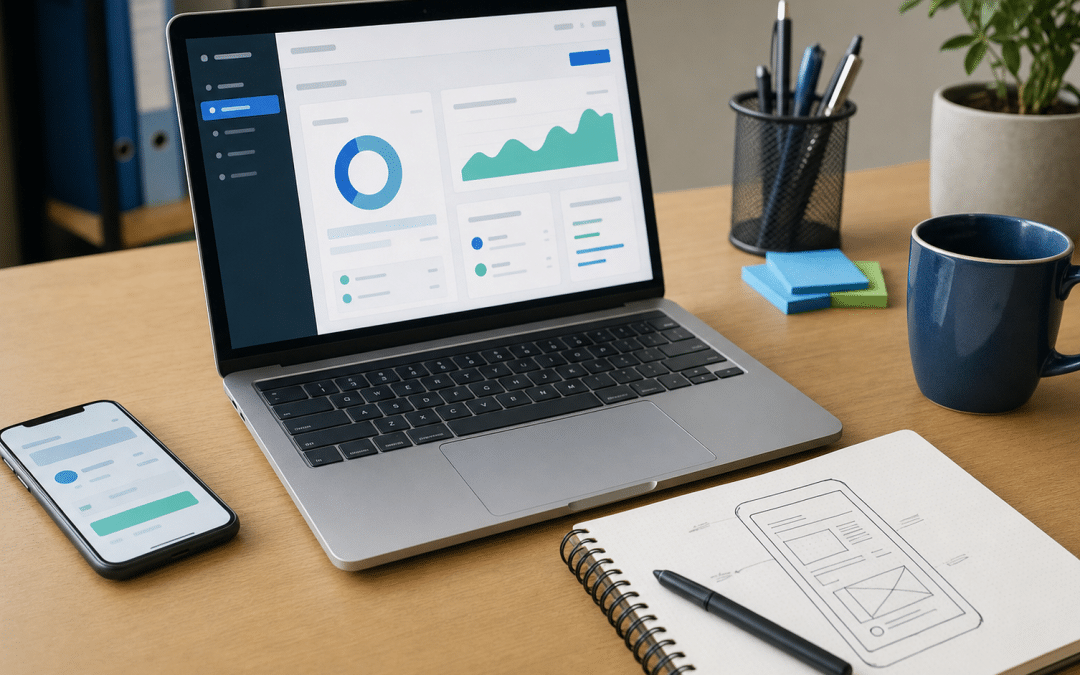
WhatsApp business for pc means linking your WhatsApp Business account to a Windows or Mac computer, or to a browser, so you can answer customer chats on a full keyboard while the account stays on your phone.
WhatsApp's own help page for the Business app allows up to four linked devices and one phone at a time. It is the simplest first step in the WhatsApp marketing guide for South African businesses, and it has limits that most tutorials skip.
Those limits decide whether a laptop at the front desk works or quietly loses you enquiries. Broadcast lists, status updates and live location do not work from a linked computer, and WhatsApp says linked devices log out if the phone sits unused for more than 14 days. This post covers the three ways to run the account on a PC, the linking steps, what breaks, and when to move off the phone-and-laptop model.
Quick Answer
WhatsApp Business for PC is a linked-device setup, not a separate account: install WhatsApp Desktop on Windows or Mac, or open web.whatsapp.com, then scan a QR code from the Business app on your phone. On the standard Business app you can link up to four devices plus the phone, but broadcast lists and status updates stay phone-only. WhatsApp logs linked devices out if the phone is unused for over 14 days, and separately publishes a 30-day inactivity disconnect, so use the phone regularly.
Answering customers from three different screens?
Send us how your team handles WhatsApp chats today and we will point out where enquiries are slipping through.
How Does WhatsApp Business for PC Work? Three Routes, One Account
WhatsApp Business for PC works through the linked devices feature: your phone stays the primary device, and the computer is a companion that mirrors the same number, chats and business tools. WhatsApp's own linking page lists WhatsApp Web and WhatsApp Desktop among the supported platforms, alongside companion phones and Android tablets.
There is no separate Business download for the desktop. WhatsApp's desktop download page offers one WhatsApp Desktop app per operating system, and both versions need linking to a primary phone. The Business app's own product page only points to Google Play and the App Store. A South African owner searching for a "WhatsApp Business desktop" installer is therefore looking for the standard desktop app, then logging in with the Business account.
| Route | How you get it | Best For |
|---|---|---|
| WhatsApp Desktop for Windows | Install from the Microsoft Store, then link | A Windows PC that stays in one place, such as a reception or sales desk |
| WhatsApp Desktop for Mac | Download from the WhatsApp download page or the App Store, then link | Mac users who want the app running in the background all day |
| WhatsApp Web (web.whatsapp.com) | Open web.whatsapp.com in a browser and link | Shared, borrowed or unsupported computers where you do not want to install anything |
Meltwater's early-2025 summary of South African digital usage puts laptop, MacBook or PC ownership at 79.1% of South African internet users. That is a population figure, not a survey of business owners, but our own judgement is that the question is rarely hardware. It is which route fits how your team works.
Linking Your Computer to the Business App in Five Steps
Linking a computer to WhatsApp Business takes a few minutes and needs your phone in hand, because the phone authorises the link and scans the code that the computer displays. WhatsApp's device-linking guide describes the same steps for linking a computer.
- On the computer, install WhatsApp Desktop, or open web.whatsapp.com in your browser. A QR code appears.
- On your phone, open the WhatsApp Business app and go to Linked devices.
- Tap Link a device.
- Confirm your identity on the phone with your biometric, PIN or passkey.
- Scan the QR code on the computer screen. Your chats load on the computer.
Take a backup of the phone before you link a work computer. Chat history on linked devices can be incomplete: WhatsApp's linking page notes a known issue where some linked devices do not display up to one year of chat history. Our guide to WhatsApp Business backup and restore covers the safety copy.
What Does Not Work When You Use WhatsApp Business on PC
Some Business app functions stay on the phone even when the computer is linked, and the gaps matter most for anyone planning to run promotions from a desk. WhatsApp's Business linked-devices page lists three features that linked devices do not support: sharing and viewing live location, creating and viewing broadcast lists, and adding and deleting status updates.
Quick Answer: The Broadcast Gap
If your plan is to send a promotion to a list from a laptop, WhatsApp Business on PC cannot do it. Broadcast lists cannot be created or viewed on a linked computer, so that work stays on the phone. Our comparison of WhatsApp broadcast lists versus groups explains what each tool is for.
Two connection rules also catch teams out. WhatsApp's Business page says linked devices keep working without the phone online but log out if the phone is unused for more than 14 days. The same page's security note adds that linked devices disconnect automatically after 30 days of inactivity. WhatsApp does not say how the two figures interact, so plan around the shorter one. A phone left in a drawer over a long December shutdown is the realistic way to get logged out of every screen at once.
The same screen still gives you the everyday tools. Typing replies on a full keyboard, pasting order details and searching old chats are the reasons most owners link a computer in the first place. Build WhatsApp quick replies for the questions you answer most often, then check that they appear on the linked computer before you hand it to desk staff.
Not sure your setup can handle promotions?
Tell us how many people answer WhatsApp and how many chats arrive in a day, and we will tell you whether the phone-plus-PC model still fits.
Desktop App or Browser: Which Route Suits Your Setup?
The right route is set by who uses the computer and how long it stays logged in: the desktop app suits a machine owned by one person or one role, and the browser suits anything shared or temporary. The table below keys the choice to the situation rather than to a feature list.
| Your situation | Better route | Why |
|---|---|---|
| One owner-operator with a laptop | Desktop app | Stays open in the background; nothing to re-open in a tab |
| Reception PC used by several people | Browser, logged out each shift | Less chance of a former employee's session staying open on the machine |
| Borrowed or client computer | Browser, then remove the device | Leaves nothing installed; unlink from the phone when done |
| Computer too old for the desktop app | Browser | WhatsApp points users on unsupported systems to web.whatsapp.com |
| Chromebook or Linux machine | Browser | The desktop download page lists Windows and Mac |
Whichever you pick, treat the phone as the account's anchor rather than a spare. WhatsApp's 14-day rule is about the phone going unused, so keep the phone charged and opened regularly, including through load-shedding and over the December shutdown.
Running WhatsApp Business Desktop for a Team of Agents
A team can answer from several computers on one number, but on the standard Business app the arrangement is capped at four linked devices plus the phone, so five screens in total. The detail of seat counts and chat ownership is in our post on WhatsApp Business with multiple users; the PC-specific points are these.
- Name the devices. WhatsApp's multi-agent feature lets you name linked devices, assign and claim chats, and see which agent and device sent each message. Its help page supports Android and iOS only, with tablets unsupported, and does not mention desktop either way, so test it before building a process around it.
- Limit by role, not by person. A "front desk" computer and a "sales" computer are easier to audit than five personal logins. Remove a device from the Linked devices menu the day someone leaves.
- Keep the profile consistent. Every linked computer shows the same business profile, so fix it once. Our guide to a WhatsApp Business profile that converts covers what to set.
Quick Answer: Team Limits on a Computer
On the standard Business app, a team shares one number across the phone plus up to four linked computers or devices. Everyone sees the same inbox, and the phone remains the only place to run broadcasts and status updates, so plan the number of seats before you hand out QR codes.
Why Has My WhatsApp Business Desktop App Stopped Working?
A Business desktop session mainly stops working because it was logged out after a period of phone or device inactivity, removed from Linked devices, or linked from the wrong app. Check those cheap explanations before reinstalling anything. The table maps each symptom to hypotheses and the check that tells them apart.
| Symptom | Possible causes | Check that separates them |
|---|---|---|
| Computer asks for the QR code again | Phone unused for over 14 days; device removed from Linked devices; 30-day inactivity disconnect | Open Linked devices on the phone: if the computer is missing, it was logged out. Open the phone app, then link again |
| Old chats are missing on the computer | Known WhatsApp issue with up to one year of history on some linked devices; recently linked | Compare with the phone: if the chat is on the phone, the account is fine and the display is the problem |
| Cannot find broadcast lists | Unsupported on linked devices | Open the same list on the phone |
| QR code will not scan | Outdated Business app; screen glare or small window; no identity confirmation | Update the app, enlarge the code, and confirm your biometric or PIN when prompted |
| Cannot use Business features you expect | Logged in with a personal account, not the Business app | Check which app generated the Linked devices screen you scanned from |
The last row is the most common source of confusion: the personal WhatsApp app and the Business app each have their own Linked devices screen. Our comparison of the Business app versus personal WhatsApp explains the split.
When WhatsApp Business Web Is No Longer Enough
The phone-plus-computer model runs out when more screens need access than the standard cap allows, when chats need named owners and reporting, or when you need to send approved campaigns at scale. At that point the route is the WhatsApp Business Platform (the API) behind a shared-inbox tool, not more laptops.
Meta charges the Platform per delivered message, by category: marketing, utility, authentication and service. Service messages are free within 24 hours of a customer contacting you. When checked on 6 November 2026, the rand did not appear in the currency list on Meta's pricing page, so budget for exchange-rate movement. Our WhatsApp Business app versus API post sets out the decision, and the coexistence guide covers keeping the app alongside the API.
Ready to move beyond the shared laptop?
Send us your monthly chat volume and team size and we will audit whether the app, the API or a mix suits you, with no obligation.
Why South African Businesses Choose Growth Pulse Media
Growth Pulse Media is a Johannesburg agency run by Dirk van Greuning, who built and scaled a large South African ecommerce business before founding the agency. All work is executed in-house and the client load is limited so senior attention stays on your account.
Where WhatsApp is part of a wider plan, the WhatsApp marketing service page explains how the channel fits alongside Meta Ads and the rest of your acquisition. We start with the audit and your own numbers in Rand, not with a tool.
Who This Is NOT For
WhatsApp Business on a PC is the wrong fit for three kinds of business: teams that need more seats than the standard cap, owners who want to run promotions from a desk, and anyone who rarely uses the phone.
Teams that need more screens than the standard cap. On the standard Business app that is four linked devices plus the phone. Meta Verified or Meta One subscribers can link up to ten under multi-agent, which WhatsApp's help page supports on Android and iOS only. Beyond that, you need a Platform-based shared inbox.
Owners who want to send promotions from a desktop. Broadcast lists and status updates are not supported on linked devices, so this setup cannot be your campaign desk.
Anyone who rarely touches the phone. WhatsApp logs linked devices out when the phone goes unused for more than 14 days, so a "phone in the cupboard" model is likely to fail.
Frequently Asked Questions
These answers cover the practical questions about running WhatsApp Business on a computer, drawn from WhatsApp's own help pages.
Can I use WhatsApp Business on my PC without my phone?
Not at first. Your phone must authorise and scan the QR code to link the computer. After that, WhatsApp says linked devices work without the phone online, but log out if the phone goes unused for more than 14 days.
Is there a separate WhatsApp Business desktop app?
WhatsApp's download page offers one WhatsApp Desktop app for Windows and one for Mac. You link it to your Business account by scanning the QR code from the WhatsApp Business app, and the browser version at web.whatsapp.com works the same way.
How many computers can I link to one WhatsApp Business number?
WhatsApp's Business help page allows up to four linked devices and one phone at a time. WhatsApp's multi-agent help page says Meta Verified or Meta One subscribers can link up to ten, but it supports Android and iOS only and does not say how that applies to desktop.
Can I send broadcasts from WhatsApp Business on PC?
No. WhatsApp lists creating and viewing broadcast lists as unsupported on linked devices, so you create and send broadcasts from the phone. The same limit applies to status updates and live location.
Why does WhatsApp Business Web keep logging me out?
A common cause is a phone left unused for more than 14 days, or a device removed from the Linked devices menu. WhatsApp also says linked devices disconnect automatically after 30 days of inactivity, so open the Business app regularly and link again if needed.
Get Your WhatsApp Setup Reviewed
We will review how your team uses the Business app, where a PC or browser fits, and whether it is time for the Platform. No obligation. We will get back to you within 24 hours.