
 Add to Preferred Sources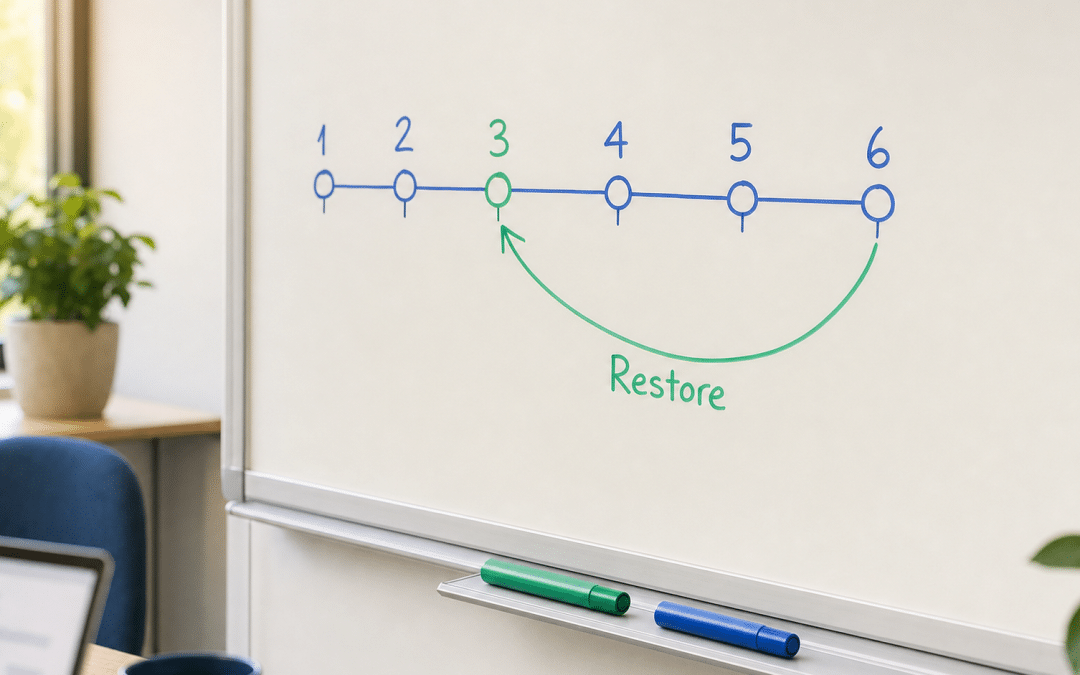
The wordpress revisions restore page feature is WordPress's built-in safety net — on each save, WordPress writes a copy to its database so you can roll back to any earlier version without touching a backup plugin. It works for accidental overwrites, copy-and-paste disasters and mid-edit reformats.
For South African site owners managing their own WordPress websites, understanding exactly what revisions can and cannot recover — and how to stop them from bloating a shared-hosting database — saves both content and server resources.
This guide covers the step-by-step restore process for the block editor (WordPress 7.0+), the classic revisions screen (WordPress 6.9 and earlier), and Elementor's separate history panel. It also shows you the two wp-config.php constants that control revision storage, with a clear decision table for knowing when to rely on revisions and when you actually need a full backup restore.
Quick Answer
To use wordpress revisions restore page functionality: open your post or page in the WordPress editor, click the revision count in the right-hand Settings sidebar, use the slider to find the version you want, then click Restore. WordPress saves a new revision rather than overwriting your current version, so you can always go back again. Revisions cover text and formatting changes made inside the editor — they do not recover a page that has been deleted outright or changes made to theme files.
Jump to
Spending too much time fixing your own site?
Send us a note and we'll assess your current WordPress setup — free, no obligation, and a response within 24 hours.
Get a Free Site AssessmentHow WordPress Revisions Work Under the Hood
WordPress revisions are stored as rows in the same database table as your posts and pages (wp_posts), each assigned a post_type of revision and linked back to the parent page via a post_parent pointer. Each click of Save draft, Update or Publish writes a full copy of the title, content and excerpt to a new revision row.
Separately, WordPress autosaves your work every 60 seconds while you're editing, using a background Ajax call. Autosaves behave differently from regular revisions: there is only ever one autosave stored per user, per page. New autosaves overwrite old ones, so the database does not grow by one row every minute — it stays at one autosave row per user regardless of how long the editing session runs. Autosaves appear in the revision timeline labelled "Autosave" and are separate from regular revision entries.
This distinction matters for South African site owners. During load-shedding, if your browser session dies mid-edit, the 60-second autosave means you lose at most a minute's worth of changes. On your next visit to the editor, WordPress shows a prompt offering to restore the autosave — accept it if the power cut happened before you could save manually. The simplest approach to undo changes WordPress page editors make in a rush is always the revisions panel — no plugin or backup restore required.
WordPress.com (hosted) vs self-hosted WordPress.org: According to Jetpack's WordPress revisions guide, WordPress.com's Free, Personal and Premium plans store up to 25 revisions per page; Business and eCommerce plans store up to 100. Check WordPress.com's current plan documentation to confirm these limits if you are evaluating an upgrade. If you run a self-hosted WordPress site — the version most SA businesses have on local hosting — the default is unlimited revisions unless you configure otherwise.
Key Takeaway: WordPress Page Version History
The WordPress page version history is stored in your database from the first save and grows with each manual update. To view it: open the Settings sidebar → Page tab → click the revision count. The slider shows every save point back to publication. To restore WordPress page revision content, select the version you want and click Restore — WordPress saves the restored content as a new revision, leaving your previous versions intact.
WordPress Revisions Restore Page or Post: Step-by-Step
The wordpress revisions restore page process varies slightly depending on your WordPress version. According to the official WordPress revisions documentation, WordPress 7.0 introduced a redesigned revisions screen; earlier versions use the classic two-pane comparison layout. Both are accessible from the same place in the editor.
Block Editor — WordPress 7.0 and Later
- Open the page or post you want to roll back in the WordPress editor.
- Open the Settings sidebar (top-right gear icon if it's not already visible).
- Click the Page or Post tab in the sidebar.
- Click the number next to Revisions (e.g. "12 Revisions") — this opens the new revisions screen.
- Use the slider at the top to move through saved versions, or click directly in the Revision panel list to jump to a specific date and time.
- Review the colour-coded changes: solid green = blocks added, red diagonal stripes = blocks removed, yellow diagonal stripes = blocks modified.
- When you find the version you want, click Restore.
Restoring does not delete your current version. WordPress saves the restored content as a brand-new revision at the top of the history, so if you change your mind you can restore forward again.
Good practice: Before restoring, note the current revision's timestamp in the panel. If the restored version turns out to be wrong, you can scroll forward in the slider to return to the most recent save.
Classic Revisions Screen — WordPress 6.9 and Earlier
- Open the post or page for editing.
- In the sidebar panel, click Revisions to open the classic revisions screen.
- Use the slider or the Previous / Next buttons to step through versions. The left pane shows the older version; the right pane shows the newer one.
- Enable Compare any two revisions mode (checkbox at the top) if you want to compare non-adjacent versions — this adds a second slider handle.
- Click Restore This Revision when you find the right version.
In WordPress 7.0 and later, you can still reach the classic revisions screen by clicking Open classic revisions screen in the sidebar. Useful if you prefer the side-by-side HTML comparison view.
Not sure which WordPress version your site is running?
Get in touch and we'll take a look at your setup — no obligation, and we'll get back to you within 24 hours.
Get in TouchRestoring Revisions in Elementor
If you build pages with Elementor, revision history is handled inside the Elementor editor rather than in the standard WordPress revisions screen. Elementor maintains two separate logs: Actions (changes made in the current session only) and Revisions (saved versions that persist when you close and reopen the editor).
To restore a previous Elementor design:
- Open the page in Elementor (Edit with Elementor).
- In the left toolbar, click the History icon (clock/history symbol).
- Select the Revisions tab at the top of the panel.
- Browse the timestamped entries and click the version you want to preview.
- Click Apply to restore that version instantly.
Elementor-hosted sites store the 25 most recent revisions per page. For self-hosted WordPress with Elementor installed, the number of revisions available depends on your WordPress revision settings and how frequently you saved.
Good practice: Use the Revisions tab (not Actions) when recovering from changes made in a previous session. The Actions tab only covers the current editing window and clears when you close the editor.
Controlling Revision Storage in wp-config.php
On a self-hosted WordPress site, revisions accumulate without limit by default. On shared SA hosting plans with capped database storage, a site with dozens of frequently edited pages and no revision limit can quietly exhaust its database allocation over months. Two constants in wp-config.php give you precise control.
Limit the Number of Revisions
Add this line to your wp-config.php file (before the line that reads "That's all, stop editing!"):
define( 'WP_POST_REVISIONS', 5 );This keeps the five most recent revisions per post or page. When a new save pushes the count past five, WordPress automatically removes the oldest revision. A working rule of thumb for a content site is to keep enough revisions to cover a day's editing — five is a reasonable starting point, three is fine for rarely-edited service pages, and ten is appropriate for frequently updated news or blog posts.
If the limit appears to have no effect after saving, try moving the define() call to the very top of wp-config.php, immediately after the opening <?php tag — some server configurations require the constant to load before the rest of the file processes it.
Disable Revisions Entirely
define( 'WP_POST_REVISIONS', false );Disabling revisions completely is an option for very low-resource environments, but it removes your ability to roll back any content change — use with caution, and only alongside a robust daily backup.
Adjust the Autosave Interval
define( 'AUTOSAVE_INTERVAL', 120 ); // secondsThe default is 60 seconds. Increasing the interval reduces database write frequency on slow shared servers; decreasing it below 60 seconds is possible on fast managed hosting — there is no documented minimum, so test any custom value and monitor server load before applying it to a live site. Since there is only one autosave row per user per post, this setting affects write frequency — not storage size.
Important: Setting a revision limit in wp-config.php stops new revisions from accumulating beyond the limit, but it does not delete existing older revisions already in your database. To clean up existing bloat, run a one-time cleanup using a plugin such as WP-Optimize or Advanced Database Cleaner after setting the limit. Do this on a staging copy first.
WordPress.com users cannot access wp-config.php — the platform manages revision storage on your behalf according to your plan tier. If revision limits are a concern on WordPress.com, Jetpack's revisions guide reports that upgrading to a Business or eCommerce plan raises the ceiling to 100 revisions per page; verify current tier limits on WordPress.com's plan page before upgrading. For self-hosted sites, you can always restore page from WordPress revisions as long as the limit you set is large enough to include the version you need.
Key Takeaway: wp-config.php Revision Limits
Add define( 'WP_POST_REVISIONS', 5 ); to wp-config.php before the "That's all, stop editing!" line to cap stored versions at five per page. Setting the limit does not delete existing revisions — run a one-time database cleanup after setting it. Avoid setting the limit to false (disabled) unless you have a daily backup in place, since WordPress revisions are your fastest recovery path for in-editor content changes.
For broader questions about WordPress site maintenance in South Africa, including scheduled backups and update management, that guide covers the recurring tasks that sit alongside revision control.
When Revisions Cannot Help: Recovery Decision Table
Revisions recover content changes made inside the editor — they cannot reach data that was never stored as a revision row. Before spending time scrolling through revision history, check the table below to confirm revisions are the right tool for your situation.
| What happened | Revisions can recover? | Correct recovery tool |
|---|---|---|
| Accidentally overwrote text in the block editor | Yes | WordPress revisions screen |
| Broke the page layout while editing blocks | Yes | WordPress revisions screen — restore the pre-edit save |
| Undid hours of Elementor design work (page still exists) | Yes | Elementor History → Revisions tab → Apply |
| Deleted the page from the Pages list entirely | No — revision rows are children of the post; deleting the post removes them | Check Trash first; then restore from hosting or plugin backup |
| Broke a theme or plugin file | No — file changes are not tracked as revisions | Restore file via FTP, cPanel File Manager, or backup |
| Database corrupted or server failure | No | Full database restore from hosting backup or backup plugin |
| Changed a widget or menu and want to revert | No — widget/menu data is stored in options, not post revisions | Manual reversion or backup restore |
| Lost theme customiser settings | No | Backup restore; document settings before making changes |
If your loss falls in the "No" column, revisit your WordPress hosting setup and backup schedule. Most SA shared hosts include automatic daily backups — check your cPanel or hosting control panel before assuming the content is unrecoverable.
Common mistake: Relying on revisions for full-site protection. Revisions are a content-editing safety net, not a substitute for scheduled backups. A compromised plugin or server issue can wipe the database entirely — at which point there are no revision rows left to restore.
Is your WordPress site backed up and recoverable?
Share your setup with us and we'll audit your backup and recovery configuration — one conversation, no obligation.
Audit My Backup SetupWhy South African Businesses Choose Growth Pulse Media for WordPress
Our web design service is built around WordPress sites that operators can actually manage day-to-day — including understanding which native tools, like the revision system, are worth using and which gaps need a plugin or hosting-level solution.
Dirk van Greuning founded Growth Pulse Media after building and scaling a large South African ecommerce business, so the advice comes from someone who has navigated local hosting constraints, load-shedding-driven data loss risks and the practical limits of budget shared hosting — not from a textbook. All work is executed in-house; client load is kept limited so that senior attention remains on every project. We are a registered Shopify Partner and Omnisend Certified Partner.
When we configure a WordPress site for an SA operator, revision limits, autosave intervals and backup cadence are part of the initial setup conversation — not an afterthought left to the client to figure out. If your current site has never had that conversation, a WordPress activity log is a good starting point for understanding what's actually changing on your site over time.
Who WordPress Revisions Are NOT the Right Tool For
Three categories of WordPress site owner will find that revisions cannot solve their core problem: those running sites with no dedicated backup strategy, teams that need a structured content approval workflow, and operators on minimal shared hosting with uncapped database storage and no access to wp-config.php.
Sites with no backup strategy. If your only recovery plan is the revision system, you are unprotected against the scenarios that matter most: server failure, database corruption, ransomware, or an accidental page deletion. Revisions are a complement to backups, not a replacement.
Teams looking for a version control and approval workflow. WordPress revisions record who saved a version but do not offer branching, merge controls or staged review before a change goes live. If you need a content approval process — especially for regulated industries — you need a dedicated editorial workflow plugin alongside revisions.
Sites on minimal shared hosting with no database management. Unlimited revisions left unchecked on a site with frequent edits and a tight hosting database allocation will cause problems. If you do not have access to wp-config.php, do not know your current database size, and your host has not configured limits for you, revision bloat is a slow, silent issue that compounds over years.
Frequently Asked Questions
How many revisions does WordPress keep by default?
By default, self-hosted WordPress stores an unlimited number of revisions for every post and page. There is no built-in cap unless you set one yourself in wp-config.php using define( 'WP_POST_REVISIONS', 5 ); or equivalent. Separately, only one autosave is stored per user per post at any time — autosaves overwrite themselves and do not contribute to revision accumulation. Jetpack's WordPress revisions guide reports that WordPress.com's hosted service limits revisions by plan: 25 for Free, Personal and Premium; 100 for Business and eCommerce — verify current limits on WordPress.com's plan page before upgrading.
Can I use WordPress revisions to restore a page I accidentally deleted?
Not with the revisions system alone. WordPress stores revisions as child rows of the parent post; when you delete a page, its revision rows are also removed. Check the Trash (Pages → Trash) first — pages sit in Trash for 30 days before permanent deletion. If the page is not in Trash, you need a database-level backup restore from your hosting control panel or a backup plugin.
What is the difference between an autosave and a WordPress revision?
A revision is saved each time you manually save (draft, update or publish) and accumulates indefinitely unless limited. An autosave happens every 60 seconds while you are actively editing; there is only ever one autosave stored per user per page, and it overwrites itself with each cycle. Autosaves are labelled separately in the revision timeline and appear as a recovery prompt the next time you open that page for editing. On save, the autosave is replaced by the new revision.
Do WordPress revisions slow down my website?
Unlimited revisions can inflate the wp_posts database table significantly on sites with many pages and frequent edits, which may slow database queries over time — particularly on shared SA hosting where database performance is shared across accounts. Setting a sensible limit in wp-config.php (typically three to ten revisions depending on edit frequency) and running a one-time database cleanup removes the accumulated rows. A well-sized revision limit has no measurable impact on front-end load time for visitors.
Can I restore a revision in Elementor without going through the WordPress revisions screen?
Yes. Elementor maintains its own revision history inside the editor, separate from the standard WordPress revisions screen. Open the page in Elementor, click the History icon in the left toolbar, select the Revisions tab, choose the version you want, and click Apply. Use the WordPress revisions screen when you need to recover content or metadata edited outside the Elementor editor — such as content changed in the block editor directly.
Need Help With Your WordPress Site?
Growth Pulse Media sets up and maintains WordPress sites built to handle real SA operating conditions — including revision management, backup schedules, hosting migration and performance. All work is executed in-house. No obligation — we'll respond within 24 hours.
Get in Touch